
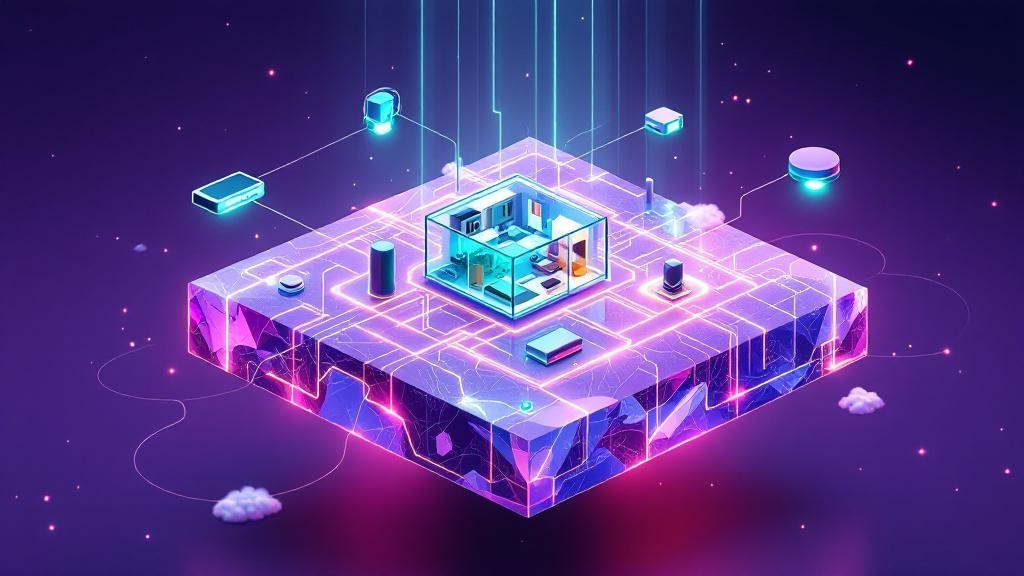
A dual-core processor and 2–4 GB RAM are all you need to run a small self-hosted website or application from home (copahost.com).
Why Home Network Configuration Matters in 2026
Self-hosting is on the rise because people are frustrated with rising subscription costs, vanishing control over their digital media, and data privacy erosion. According to techradar.com, personal servers are now built from repurposed PCs or mini-PCs, powering everything from file storage to smart home automation. It’s a reaction: take back control, own your data, and squeeze value out of hardware destined for landfill. The sheer practicality is what makes home network configuration so central to the movement. Every home server project is bottlenecked or boosted by what happens at the network layer.
Hardware is the Foundation of Home Network Configuration
Home network configuration in 2026 starts with hardware. Most people get this wrong: not every piece of hardware is suitable for self-hosting. copahost.com states that a dual-core CPU (like Intel Core i3), 2–4 GB RAM, and a 60–120 GB SSD are sufficient for low-traffic websites or applications. SSDs are not optional anymore—they deliver both reliability and speed, especially for services that need quick file access or frequent reads and writes.
Repurposing old devices doesn’t just save money. It cuts down on e-waste and keeps the Right-to-Repair momentum alive (techradar.com). Sustainability isn’t a fringe benefit. It’s a core driver, and the hardware you select is your first, decisive act in that story.
The right hardware can mean the difference between a stable, snappy experience and constant troubleshooting. Don’t trust generic advice that “any PC will do.” If you want uptime and sanity, start with hardware that matches your needs.
→ See also: How to Start a Home Lab for Beginners?
Internet Connection and ISP Limitations
Most residential ISPs block inbound TCP ports 80 and 443, making it hard to run a public-facing website from home (ssdnodes.com). Even if your hardware is perfect, your connection may be the bottleneck.
A stable upload speed of at least 10–20 Mbps is recommended for low-traffic sites (copahost.com). Many ISPs charge extra for a static IP, which is often essential for reliable remote access. Dynamic IP addresses lead to headaches with DNS and external connections—especially if you're running services you want to access outside your home.
You’ll notice this gets glossed over in online guides. The harsh reality: your ISP’s terms of service might prohibit self-hosting certain services or content entirely. In some regions, violating these terms could risk account suspension or legal complications.
If public web access is critical, consider using tunneling services or VPNs to bypass port blocks. But evaluate the risks: reliability, privacy, and legal exposure are all in play. Home network configuration isn’t just about what your devices can do; it’s about what your connection allows.
Software Stack: Linux, Home Assistant, and the Rest
Linux is the de facto standard for self-hosted web servers in 2026. Ubuntu Server and Debian are especially favored for their beginner-friendly interfaces and deep community support (copahost.com). The right OS isn’t just about nerd points—it’s about getting help fast when things break. On top of that, open-source projects like Home Assistant enable you to control lights, appliances, and cameras entirely through your own private network (techradar.com).
"Self-hosting used to be a bit intimidating, but it's really easy to get started nowadays. Our Home Assistant Green is an easy ... ." — Paulus Schoutsen, Home Assistant (techradar.com)
This is what actually works. Not the fluffy advice you see everywhere. If you’re just starting, stick to well-supported Linux distributions. For home automation, Home Assistant’s documentation and active user base reduce the learning curve dramatically.
| Tool/Platform | Function |
|---|---|
| Ubuntu Server | General-purpose server OS |
| Debian | General-purpose server OS |
| Home Assistant | Smart home automation |
| Tailscale | VPN for remote access |
Security is the Deciding Factor
Most people get this wrong: home servers are not secure by default. Opening ports without a plan is the most common pathway to security breaches. Security requires a deliberate setup: use firewalls, VPNs, and tunneling services like Tailscale for remote access (techradar.com; fullmetalbrackets.com).
Tailscale, in particular, makes network security accessible, even for beginners. With mesh VPN capabilities, you can access your home server securely from anywhere, without exposing your network to the broader internet. This is the privacy advocate’s answer to the port-forwarding dilemma.
Regular software updates and strong passwords are your first line of defense. But here’s the thing nobody tells you: The moment you open a port, you’re inviting every bot, scanner, and opportunist on the internet to try their luck. If you’re not monitoring logs or haven’t set up alerting, you’ll never know you’ve been compromised until it’s too late.
Learn from the veterans: security is a feature, not an afterthought. Your network configuration is only as good as its weakest port.
→ See also: Building a Home Lab from Scratch
Environmental and Economic Tradeoffs
Repurposing old hardware for home servers directly reduces e-waste and embodies the Right-to-Repair movement (techradar.com). But here’s the unvarnished truth: self-hosting is not always cheaper in the long run. Costs include not just hardware, but also electricity, cooling, and your time spent on maintenance and troubleshooting.
Many discover that cloud hosting is sometimes more cost-effective, especially when factoring in hardware upgrades and downtime. If your server is mission-critical, a home power cut or hardware failure is not a minor inconvenience—it’s a full stop. Reliability of residential internet connections is also debated; commercial data centers offer guarantees that home users cannot replicate. The allure of independence is powerful, but independence also means responsibility for everything that breaks.
If you’re running a Plex server for movie nights, the stakes are low. If you’re hosting family photos or business files, think twice about backup, redundancy, and uptime. Home network configuration is as much about honest self-assessment as it is about hardware or software.
Community Support is Your Secret Weapon
Online communities like r/HomeServer have become invaluable resources for self-hosters (techradar.com). The collective wisdom, troubleshooting tips, and shared experience in these forums are worth more than any manual. When the official docs are ambiguous or a weird edge case bites you, there’s usually someone who’s been there, done that, and posted the fix.
You’ll find guides, scripts, and walkthroughs for every imaginable home network configuration. The difference? These aren’t marketing. These are from people who learned the hard way. The sense of shared struggle and victory is real.
If you’re stuck, ask. If you’ve solved something, share. The ecosystem is driven by open source values: transparency, collaboration, and a refusal to accept "good enough" from closed platforms. This is what keeps self-hosting viable, even as mainstream tech pushes towards tightly locked ecosystems.
Legal and Reliability Caveats
Hosting certain types of content or running public-facing services from home can violate your ISP’s terms of service or even break local regulations. There is no universal answer—what’s allowed in one country or contract may be explicitly forbidden in another. Don’t assume, check. If you’re running sensitive or regulated content, self-hosting may not be an option.
Reliability is also a debated topic. Residential internet is less stable than commercial equivalents. Service interruptions, power cuts, and hardware failures are all more likely at home, and there’s no 24/7 support hotline. For some, the tradeoff is worth it—control and privacy matter more than uptime. For others, a few hours of downtime is unacceptable.
Home network configuration is more than plugging in a few cables and opening a port. It’s a series of deliberate choices, weighed against the realities of your hardware, internet, legal context, and risk tolerance. Do your research, and set your expectations accordingly.
→ See also: What Hardware Do I Need for a Home Lab
FAQ
What are the basic hardware requirements for a home server in 2026?
Can I use any old PC for home network configuration and self-hosting?
Are home servers always secure?
What is the recommended upload speed for self-hosting?
Closing: Where Home Network Configuration Stands in 2026
Home network configuration in 2026 is the intersection of personal agency, technical pragmatism, and a little bit of stubbornness. The era of passive digital consumption is ending. People want to host their own services, own their data, and decide what happens inside their four walls. The tools are more accessible, the risks are more visible, and the rewards—sustainability, privacy, independence—are clearer than ever. But this isn’t about chasing perfection. It’s about building something that works for you, learning as you go, and knowing that every decision, from hardware to ISP to firewall rule, is a step toward reclaiming digital autonomy. The future belongs to those who configure it.
Sources
- techradar.com/computing/why-are-home-servers-trending-i-took-the-plunge-in-an-attempt…
- ssdnodes.com/learn/how-to-self-host-a-website
- copahost.com/blog/common-hosting-requirements-and-costs-for-a-small-self-hosted-setu…
- fullmetalbrackets.com/blog/how-i-setup-home-server


Comments 0
Be the first to comment!