

73% of Home Lab Beginners Think It's Too Expensive. Most Are Wrong.
Why Home Labs Matter More Than Ever in 2026
Home labs are no longer niche or just for professionals. A comfortable beginner setup now requires at least 8 GB of RAM, 4+ CPU cores, and 60+ GB of storage (root.wine). With privacy risks and self-hosting trending, more hobbyists, students, and tinkerers are building their own labs to learn, experiment, and take control. The right lab turns curiosity into practical skill—without exposing real systems or data.
A Dedicated Workspace Is Non-Negotiable
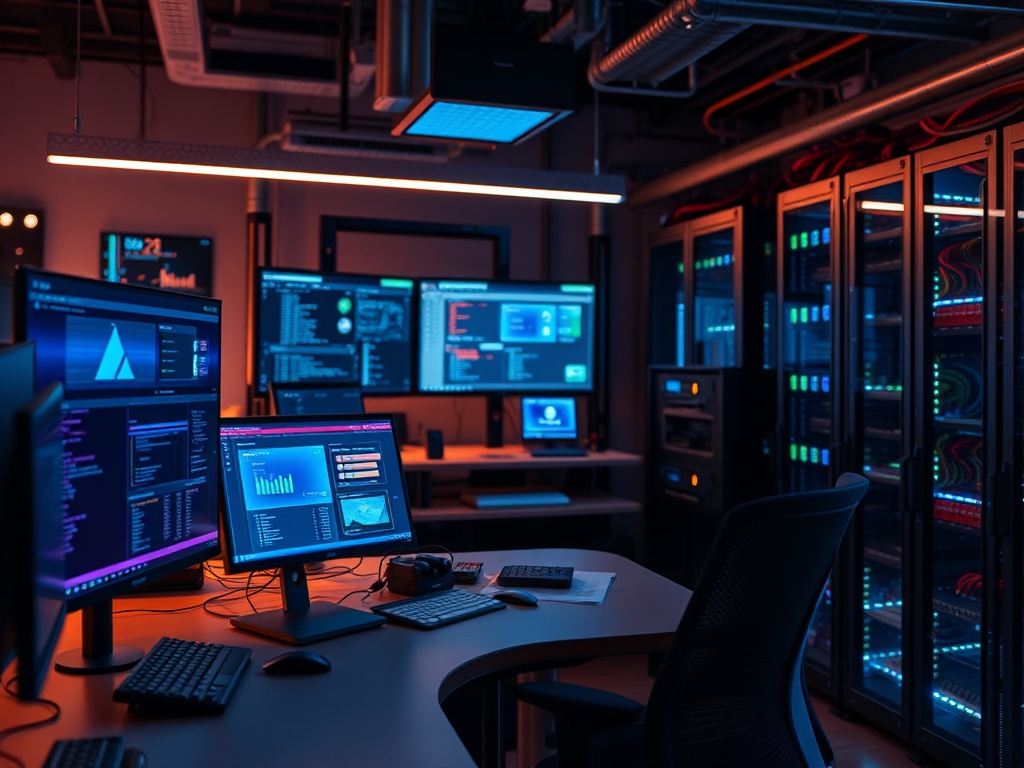
A dedicated workspace is the foundation of any successful home lab. This isn’t a luxury: it's fundamental for assembling, testing, and troubleshooting, especially if your projects involve electronics or self-hosted servers (sivo.it.com). Distractions sabotage focus, and cluttered environments breed mistakes. Most people get this wrong: the kitchen table is not a lab. You need a space where you can leave equipment out, and where family or housemates know not to touch the setup.
Why? Because labs get messy. You may have wires, breadboards, or even a half-disassembled Raspberry Pi 4 (8GB RAM) lying around. If you’re constantly packing up, it kills momentum and increases the risk of breaking things. Even a small corner or converted closet can work, as long as it’s consistent.
Lighting also matters. Good lighting prevents eye strain and helps with intricate work like soldering or reading tiny silk screens (sivo.it.com). Invest in an adjustable LED lamp before your next late-night troubleshooting session. You’ll thank yourself—and your eyesight will, too.
→ See also: How to Start a Home Lab for Beginners?
Non-Conductive Workbench Surfaces Prevent Disaster
Workbench material is often overlooked, but a non-conductive surface is essential for safety and reliability. A wooden or plastic workbench protects against electrical shorts and static discharge. Most accidents occur when components are placed on metal or other conductive surfaces, leading to shorts or fried boards (sivo.it.com).
Many new lab builders try to save money by using old desks or tables made of unknown materials. This is a false economy. The cost of replacing a Raspberry Pi 4 or a set of sensors after one static event can quickly exceed the price of a proper bench mat. For soldering or breadboard work, use an anti-static mat and ground yourself. For pure self-hosting, even a simple wooden shelf is safer than a metal rack.
You’ll notice that professional electronics labs never use metal benches. The same logic applies at home, even if your budget is tight. Ignoring this step is gambling with your hardware. The right work surface won’t make you a genius overnight, but it does keep your tools—and you—safer while you get there.

Virtualization Software Makes Labs Flexible and Safe
Virtualization software is the backbone of modern home labs. Tools like VirtualBox and VMware Workstation Player allow you to create virtual environments for testing, development, and cybersecurity exercises (proftsec.info). Instead of buying multiple machines, you can run several virtual servers, routers, or desktops on a single host.
The data shows that even a beginner setup for cybersecurity labs needs at least 8 GB RAM, 4+ CPU cores, and 60+ GB storage (root.wine). This is within reach for most modern laptops and desktops.
Here’s the thing nobody tells you: virtualization isn’t just about saving money. It’s also about safety. If you mess up a configuration or download malware, you can reset the virtual machine in seconds. No clean installs, no lost data, no tears. For self-hosting, Docker is a staple for lightweight containerization, but it’s virtualization platforms like VirtualBox that give you true isolation and rollback. For operating systems, Ubuntu Server LTS is a favorite—stable, well-documented, and forgiving for beginners.
| Tool | Type | Typical Use | Price (2026) |
|---|---|---|---|
| VirtualBox | Virtualization | VM Management | Free |
| VMware Workstation Player | Virtualization | VM Management | Free |
| Docker | Containerization | App Deployment | Free |
| Ubuntu Server LTS | Operating System | Server/VM OS | Free |
| Raspberry Pi 4 (8GB RAM) | Hardware | Physical Host | Varies, usually affordable |
Hardware: Cost-Effective Options Beat Big Budgets
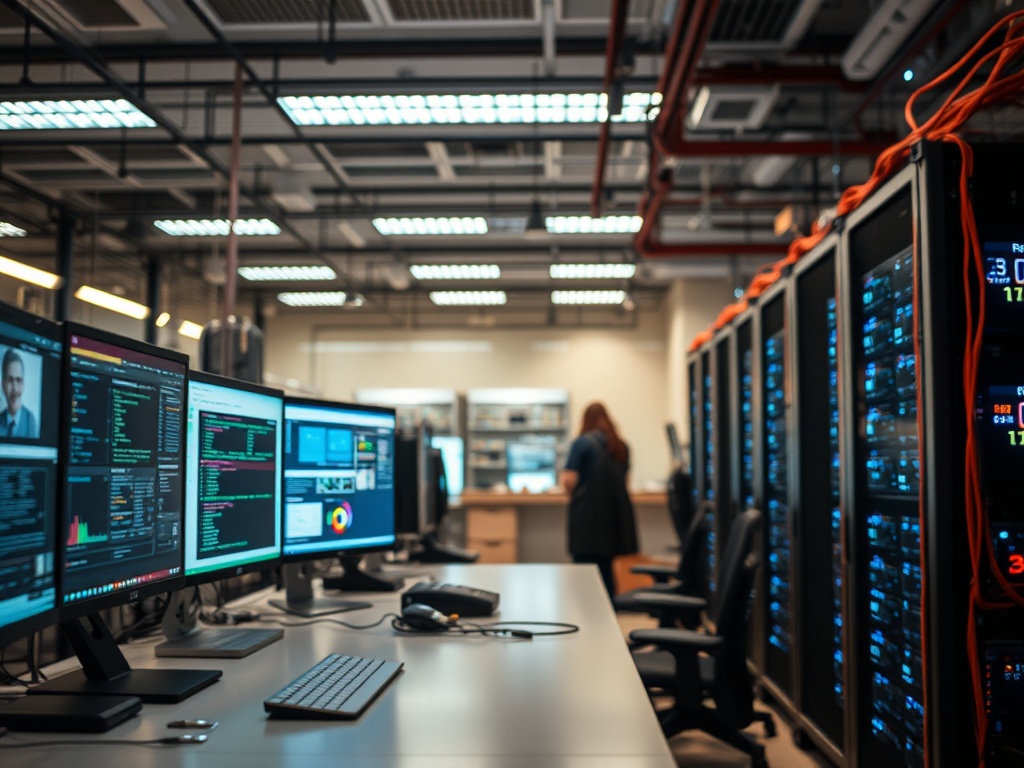
Most people get this wrong: you don’t need a server rack or enterprise hardware to set up a useful home lab. The Raspberry Pi 4 (8GB RAM) is a favorite for its price and versatility, allowing you to run multiple services or even lightweight virtual machines. Old laptops or desktops with at least 8 GB RAM and 4+ CPU cores are enough for most self-hosted apps and basic cybersecurity labs (root.wine).
The biggest misconception? That home labs are expensive. In reality, you can start with gear you already own and upgrade incrementally. For example, many users build their first NAS, VPN, or web server on recycled hardware, then move to dedicated devices only as their needs and knowledge grow. The only real must is enough memory and CPU for your use case.
→ See also: Building a Home Lab from Scratch
Benefits Go Beyond IT Pros: Labs Are for Everyone
Home labs are not just for IT professionals. Hobbyists, students, and anyone curious about technology can benefit. The idea that only experts can build or use a home lab is a myth. With affordable hardware and detailed online documentation, beginners have never had more access to hands-on learning.
A home lab creates a controlled environment for safe experimentation. According to Mike Smith of Apporto, “A home lab creates a controlled environment where you can test tools, run experiments, and explore attack simulations without putting real systems at risk.” (apporto.com)
The practical skills gained—basic networking, troubleshooting, automation, and security—are relevant far outside the tech sector. For students, it’s a springboard to internships or jobs. For hobbyists, it’s a playground. For privacy advocates, it’s a way to own your data and see how things really work behind the curtain. The truth is, the only barrier is your willingness to tinker.
Security Risks: What Most Home Lab Builders Overlook
Running a home lab connected to the internet can expose your network to security vulnerabilities if not properly configured and maintained. This is the most controversial aspect of home labs—and the most ignored by beginners. Forgetting to patch, using weak passwords, or exposing services to the web without firewalls is asking for trouble.
You can mitigate most risks by isolating lab devices from your main home network, using strong authentication, and keeping all systems up to date. The temptation to "just open a port for convenience" is strong, but it’s how most breaches happen. For self-hosters who want to test cybersecurity tools or attack simulations, virtualized environments (VirtualBox, VMware Workstation Player) allow you to break things safely, with zero risk to your real data or network.
Legal and compliance issues are another debated area. Hosting certain services or data may violate terms of service or local regulations, especially with regard to privacy and security. This is a grey area and varies by jurisdiction and provider. My advice: know the rules, and stay on the right side of them.
Lighting and Ergonomics: Serious Labs Need More Than Just Gear
Lighting is necessary to prevent eye strain and support intricate tasks like soldering or reading tiny text on boards (sivo.it.com). Too many labs are built in basements or corners with poor light, leading to mistakes, headaches, and fatigue. Invest in a bright, adjustable lamp—and if possible, natural daylight.
Ergonomics matter, too. A comfortable chair, proper height for your bench, and space to move are not luxuries. They are performance enhancers. A cramped, poorly lit lab makes troubleshooting feel like a punishment instead of a puzzle. Your back, eyes, and patience will thank you if you put in the effort to get this right. The best gear in the world is wasted if you can’t use it for more than an hour without pain.
→ See also: What Hardware Do I Need for a Home Lab
Essential Tools and Software: Start Simple, Scale Up
The data shows that successful home labs rely on a focused set of tools—not a pile of gadgets. For software, start with VirtualBox or VMware Workstation Player to create virtual machines. Docker is your friend for lightweight app deployment. Ubuntu Server LTS is the go-to OS for both VMs and bare metal, thanks to its stability and vast documentation.
Raspberry Pi 4 (8GB RAM) is the standout hardware choice for beginners and budget-conscious builders. It runs headless servers, media centers, and even full web stacks. If you’re aiming for cybersecurity or advanced networking, ensure your system has at least 8 GB RAM, 4+ CPU cores, and 60+ GB free storage (root.wine).
Don’t be seduced by the gear rabbit hole. Start with what you need to achieve your first goal—self-hosted storage, a private VPN, or a sandbox for learning Linux. Add complexity only as your curiosity demands. The best labs evolve with their owner's skills, not with their credit card limit.
Self-Hosting Services: Practical Examples and Workflows
Self-hosting in a home lab means running your own services—media servers, file sharing, backup solutions, or even private cloud apps. Docker streamlines app deployment through containers, allowing you to spin up a Nextcloud instance or a personal wiki in minutes. For more complex setups, VirtualBox or VMware Workstation Player let you run multiple servers with different operating systems, all isolated from each other.
The most effective workflow? Start with a single goal. Want private file sync? Deploy Nextcloud on Ubuntu Server LTS in a VM. Need a VPN? Use Docker to run an OpenVPN container. Document every step, including failures. You’ll learn more from what breaks than from what works. Over time, add monitoring, backups, and automation. That’s how small home labs grow into real, reliable self-hosted stacks.
FAQ: How to Set Up a Lab at Home
What is the minimum hardware needed for a home cybersecurity lab in 2026?
Is setting up a home lab expensive?
What safety precautions are important when building an electronics home lab?
Are home labs only useful for IT professionals?
Perspective: The Real Payoff of a Home Lab in 2026
The biggest surprise in building a home lab isn’t the technical hurdles—it’s the shift in mindset. You start by following guides, buying parts, and copying configs. But somewhere between your first broken VM and your fifteenth successful self-hosted service, you realize you’re not just learning tech. You’re learning to think for yourself.
A home lab is controlled chaos. It’s where you can fail, recover, and try again without risking anything but your own time. The lessons stick because the stakes are real. You see what works, what breaks, and why. That’s a kind of confidence no course or tutorial can give you. The world in 2026 is only getting more digital, more opaque, and more dependent on black-box infrastructure. Setting up your own lab is a small act of independence—and a practical way to keep your skills, privacy, and curiosity alive.
Sources
- sivo.it.com/home-electronics-lab/how-do-i-set-up-an-electronic-lab-at-home
- proftsec.info/blog/how-to-set-up-beginners-cybersecurity-lab-at-home
- root.wine/how-to-set-up-home-cybersecurity-lab
- apporto.com/how-to-set-up-a-cybersecurity-lab-at-home


Comments 0
Be the first to comment!