
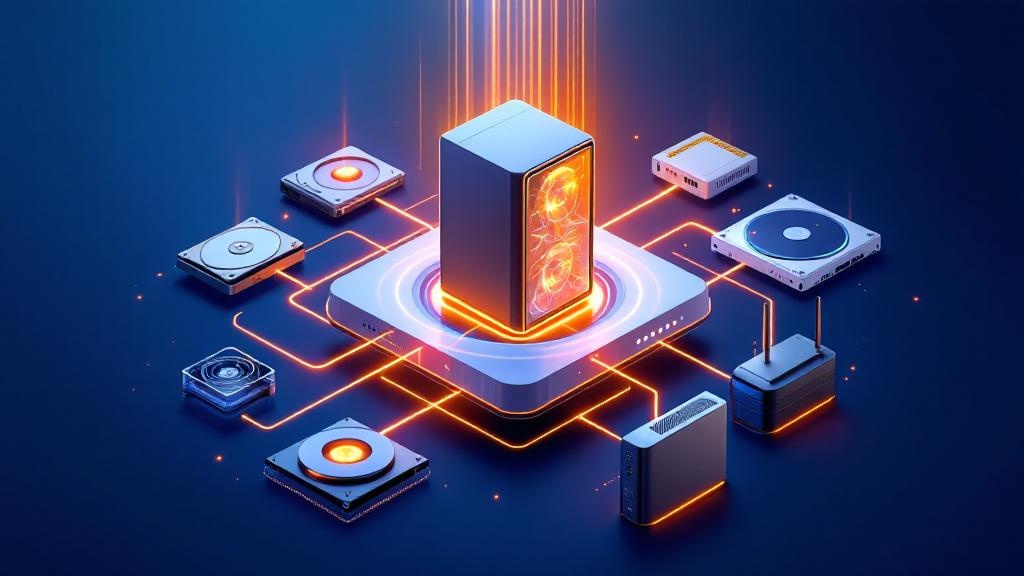
A home server running 24/7 can increase your electricity bill, but most newcomers underestimate the upfront hardware costs and ongoing power consumption (forbes.com).
Most people assume hosting a website is something only companies or pro sysadmins do. Yet in 2026, more individuals are running personal sites, blogs, and project pages from their own homes than ever. The hardware needed—a 64-bit x86 or ARM64 CPU, minimum 2 GB RAM, and at least 20 GB SSD—is now affordable for hobbyists or privacy die-hards (openpanel.com).
Hardware Requirements for Hosting a Website at Home in 2026
A dedicated machine or virtual machine with a fresh OS installation is essential to host a website on a home server. The server should have a 64-bit x86 or ARM64 processor, at least 2 GB of RAM (4 GB or more for reliability), and a minimum of 20 GB SSD storage. Ubuntu 24.04 LTS, Debian, AlmaLinux, and Rocky Linux are all supported options (openpanel.com). A wired network connection offers the most stable performance—Wi-Fi drops and latency will eventually catch up with you.
Raspberry Pi remains popular with hobbyists and small websites, with pricing dependent on current model and configuration. Check the official Raspberry Pi website to avoid sticker shock (tomshardware.com).
Most people overestimate what their old laptop can do. For a simple static site, it may survive—but a dynamic site with a database will bog down fast if you cut corners on RAM or disk.
| Tool/Product | Type | Recommended Use | Current Price |
|---|---|---|---|
| Raspberry Pi | Hardware | Small static/dynamic sites | See official site |
| OpenPanel | Control Panel | Self-hosted site management | See official site |
| DuckDNS | Dynamic DNS | Managing dynamic IPs | Free (donation-based) |

Choosing the Right Software Stack: Apache, MariaDB, and WordPress
A classic Linux-based stack—Apache, MariaDB, and WordPress—remains the most common approach for hosting a website on a home server (tecmint.com). Apache handles HTTP requests, MariaDB stores your data, and WordPress delivers the content. This trio is well-documented and widely supported, and almost every tutorial or fix online assumes you have something similar.
OpenPanel offers a control panel tailored to self-hosting environments. It simplifies management but does not eliminate the need to dive into the terminal now and then (openpanel.com). The price is not fixed, so always check the vendor's site.
You'll notice that alternatives like Nginx or Caddy aren't mentioned in the major guides. That isn't an accident: Apache is familiar, predictable, and less likely to surprise you with gotchas at 3am.
→ See also: How to Start a Home Lab for Beginners?
Managing Dynamic IP Addresses: Why Dynamic DNS Services Matter
Most home internet connections provide a dynamic IP address that changes periodically. To keep your site accessible under the same domain, you need a Dynamic DNS service. DuckDNS is a popular free option—donation-supported and straightforward to set up (tecmint.com).
Dynamic DNS monitors your public IP and updates your DNS records when it changes. Without this, visitors will find your site unreachable every time your IP changes. DuckDNS never charges, but consider donating if you rely on it.
No matter how stable your ISP promises to be, a dynamic IP is inevitable for most home users. Save yourself the frustration and set up Dynamic DNS from the start.

Security Is Not Optional: Locking Down Your Home Server
Most people get this wrong: basic security measures are not enough. Home servers face real-world attacks—automated bots, brute-force attempts, and more. Strong passwords, SSH key authentication, and firewalls like UFW are just the baseline. Fail2ban blocks repeated offenders. A CDN such as Cloudflare can add another shield against DDoS and some attack types.
Attacks on home servers are constant and opportunistic. The myth that "nobody will bother hacking my little blog" is persistent—and dangerous (nuvorix.com).
You'll see endless suggestions online for "security by obscurity"—strange port numbers or hiding login pages. This is not a substitute for real security. Treat your home server like a production system.
Network Performance, Reliability, and Bandwidth Myths
The data shows most residential ISPs impose bandwidth caps or throttle upload speeds (whatismypublicip.com). Expecting unlimited traffic from home is wishful thinking. Upload bandwidth, not download, is your bottleneck: even if you pay for 500 Mbps down, your upload could be stuck at 20 Mbps or less.
Downtime is more common than in professional hosting environments. Power outages, router resets, or hardware failures happen. Redundant power and regular backups can reduce risk, but not eliminate it (hub.stellantis.com).
If reliability and high traffic are priorities, home hosting will frustrate you unless you have business-class internet or a serious backup power plan. For hobby and personal use, the trade-offs are usually worth it—if your expectations are realistic.

→ See also: Building a Home Lab from Scratch
Legal, ISP, and Cost Considerations in 2026
Hosting a website on a home server is not always permitted by your ISP. Many terms of service explicitly prohibit running servers or may throttle your connection if traffic spikes (whatismypublicip.com). Always check before spending time or money—getting shut down after launch is more common than you think.
While self-hosting can be cost-effective over time, the initial hardware outlay and ongoing electricity costs are often underestimated (forbes.com). Unlike shared hosting for a few dollars a month, a home server runs 24/7. That adds up on your electricity bill.
The cost debate is ongoing: some argue the savings are real, others point out the time, risk, and utility bills offset any financial benefit. Your situation will dictate which side of this debate you land on.
Scalability and the Realities of Growth
Scaling a home server for increased traffic is not trivial. Unlike cloud hosting, you can't just click a button to double your resources. Most hardware upgrades—RAM, storage, bandwidth—have hard limits and quickly become expensive (hub.stellantis.com).
If your site grows beyond a few hundred visitors a day, bottlenecks will emerge: bandwidth, disk IO, or CPU. Major spikes—say, a project going viral—can overwhelm your connection and hardware overnight. Cloud hosts are designed to handle these shocks. Home servers are not.
That said, not everything needs to scale. For personal blogs, portfolios, or family projects, home hosting is usually more than enough. Know your limits and architect accordingly.
The Learning Curve: Why Home Hosting Is a Deep Dive
Setting up and maintaining a home server demands technical know-how: networking, security, Linux administration, and troubleshooting (forbes.com). The process is time-consuming, especially for beginners. There are guides, but the rabbit hole is deep.
You'll make mistakes—some obvious, some subtle. But this is the real pay-off for many: the skills gained from launching and maintaining your own server are applicable everywhere in tech. If you enjoy tinkering, solving problems, and learning by doing, it's hard to match the experience.
Most people give up at the first major hurdle. The difference is tenacity—and a willingness to learn from failure. If that's your style, you'll thrive.
→ See also: What Hardware Do I Need for a Home Lab
FAQ: Hosting a Website on a Home Server in 2026
Can I host a website on any old computer?
Will my home website be always accessible?
Is it legal to host a website from home?
What are the ongoing costs of home hosting?
Why I Still Host at Home in 2026
You can buy convenience, but you cannot buy the satisfaction of running your own infrastructure. Hosting a website on a home server in 2026 is an act of defiance—against surveillance, against vendor lock-in, against the idea that everything must be scalable, polished, and cloud-native. There are headaches, yes. Power bills, failed updates, and the occasional "why is my site down at 2am?" But the trade-offs are worth it for the control, the privacy, and the pure joy of making something work, on your own terms. If you want to understand the internet as it truly is, build a piece of it yourself. Just don’t expect it to be easy. Nothing worth doing ever is.
Sources
- openpanel.com/docs/articles/install-update/install-on-home-server
- tecmint.com/host-website-home-linux-system-free
- whatismypublicip.com/blog/host-server-on-home-internet
- forbes.com/advisor/business/how-host-own-website
- hub.stellantis.com/article/the-hidden-potential-of-hosting-a-website-from-home-in-2024
- nuvorix.com/2024/11/24/securely-host-your-website-from-home
- tomshardware.com/how-to/host-public-website-raspberry-pi



Comments 0
Be the first to comment!